How do you print a digital map poster in A3, A2 or A1 without cropping it?
Print a digital map poster in A3, A2 or A1: check file quality, scaling, paper, proofs and frame dimensions.
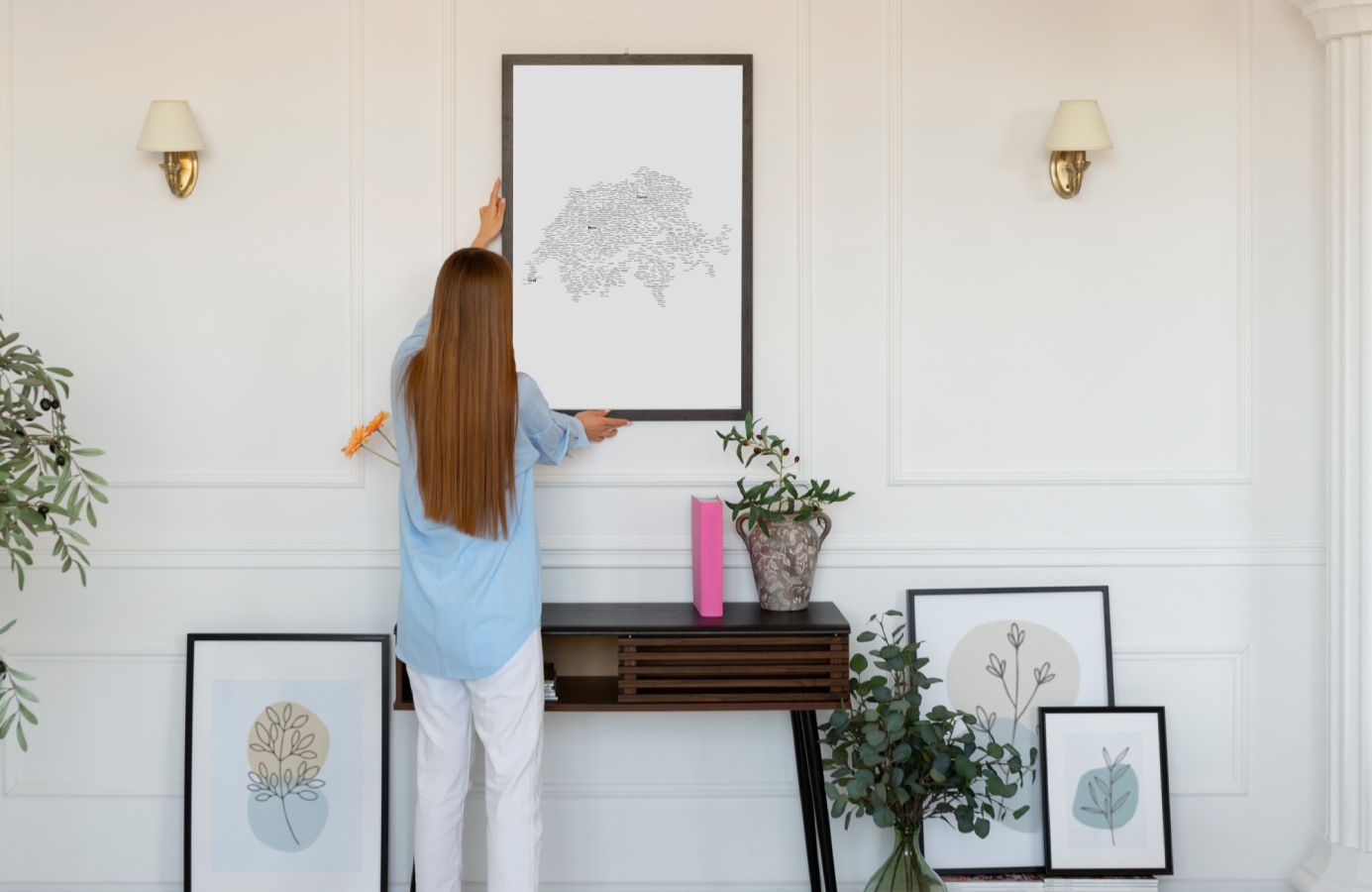
To print a digital country-map poster cleanly, match the original file, paper and frame before you order. Use the downloaded file rather than a screenshot, preserve the complete design in the print preview, and check the final dimensions with the print shop. Most problems come from automatic scaling or choosing a frame whose proportions do not match the artwork.
A typographic map needs particular care because its detail is made of place names. A print can look attractive from across the room yet lose the smaller names up close. The steps below help you choose between A3, A2 and A1, prepare a sensible order and spot errors before paying for a large print.
Start with the wall and the paper dimensions
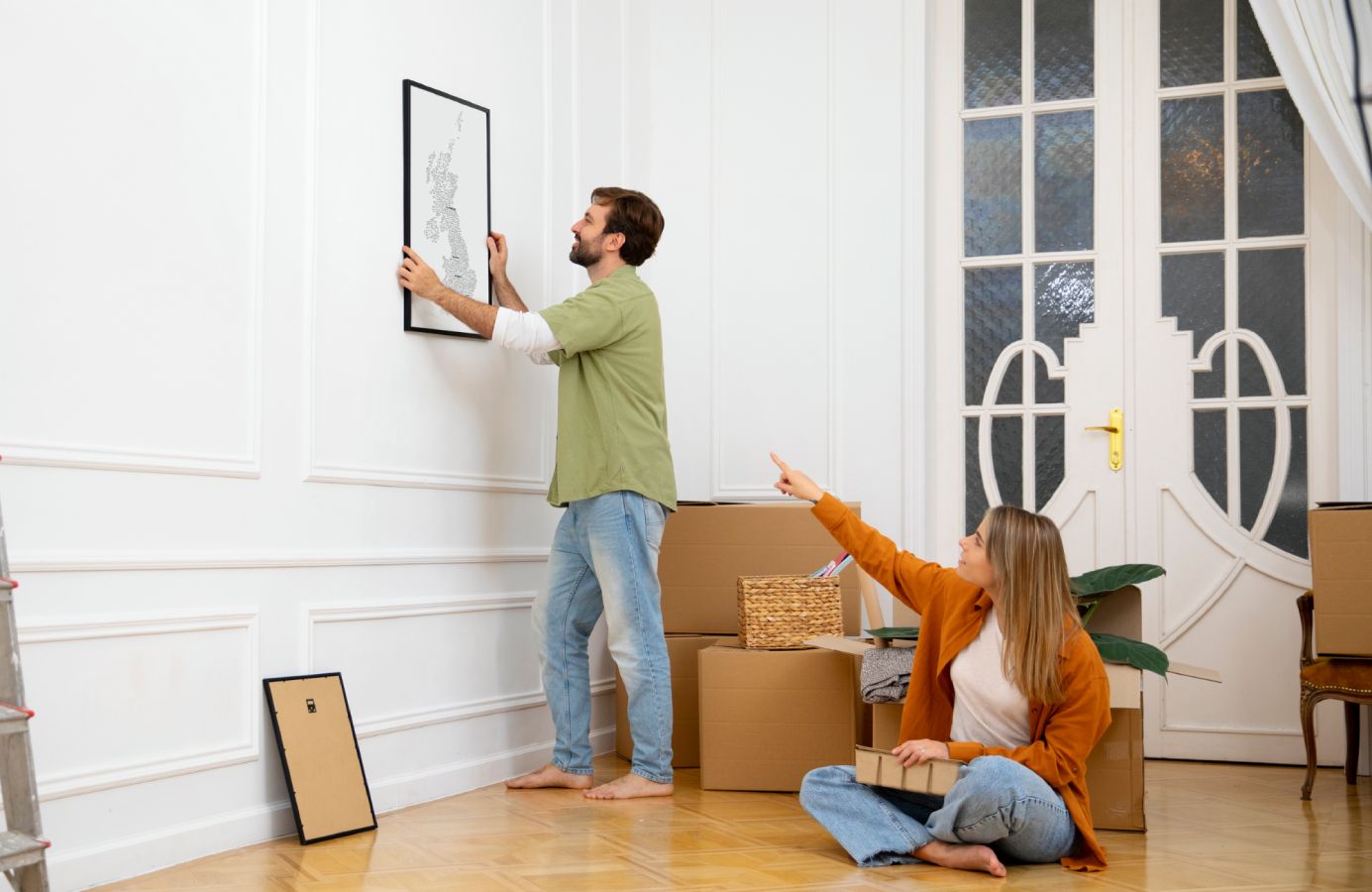
For example, a United Kingdom design highlighting London, Leeds and Bristol needs to be checked at the intended print size. Ask the local print shop to confirm the dimensions in millimetres and show you a paper sample. The city list is an illustration of the method, not a reason to add places that have no meaning for you.
A3 is 297 × 420 mm, A2 is 420 × 594 mm, and A1 is 594 × 841 mm. In landscape orientation, the same two measurements simply swap places. Choose the size by measuring the space where the print will hang. Include room around the frame and consider whether furniture or a doorway will make the poster feel crowded.
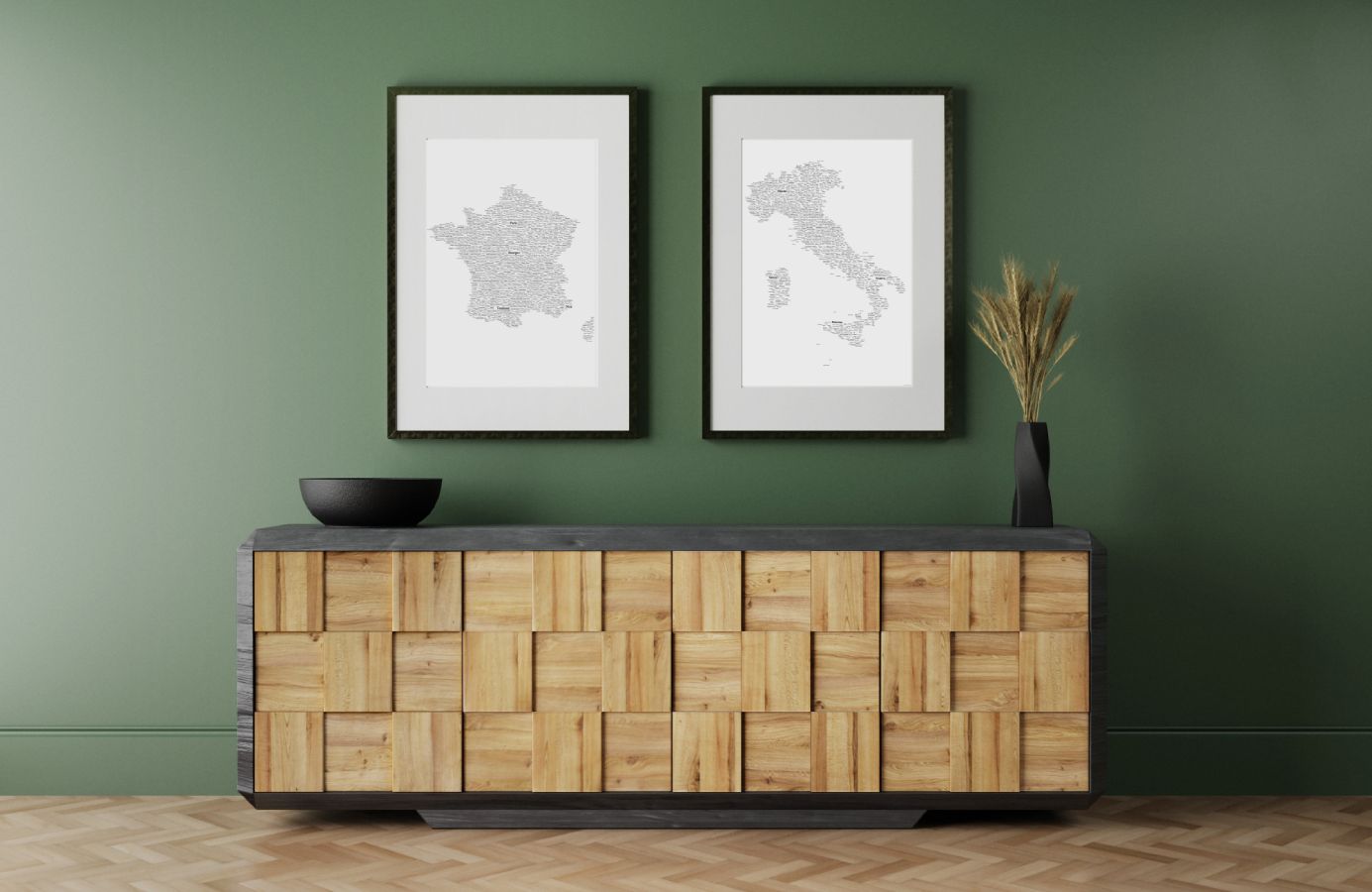
Make a paper template or mark the outline temporarily using a method suitable for your wall. Look at it from the doorway and from the place where you will normally sit. A larger format can make a dense map easier to explore, but a poster that overwhelms the room may be a poor fit. Check the actual design preview rather than assuming that bigger is always better.
Download the original file and keep it unchanged
YourLovely.Place supplies high-resolution PNG, PDF and TIF files for the selected design and size. Save the original download somewhere you can find again. Do not take a screenshot of the preview, enlarge a social-media image or print a photograph of someone else’s finished poster. Those copies may discard detail or distort the colours and proportions.
Ask the print shop which of the supplied formats it prefers. PDF can make page dimensions easier to inspect; PNG and TIF are also useful when the shop’s workflow supports them. A file extension alone does not guarantee that a print will be sharp. The operator still needs to check the file’s dimensions and suitability for the final size.
Check resolution without treating a number as magic
For close viewing, 300 pixels per inch is a useful target for raster artwork. At that density, A3 is approximately 3508 × 4961 pixels, A2 is 4961 × 7016, and A1 is 7016 × 9933. These are reference calculations, not a promise about the pixel dimensions of every supplied file. Let the print shop assess the actual download.
Changing a resolution label from 72 to 300 without adding real image detail does not restore missing letters. Nor does enlarging a small screenshot. If the operator reports that the file is too small, return to the original download and confirm the selected size. Ask for an assessment before paying for image enlargement or other changes.
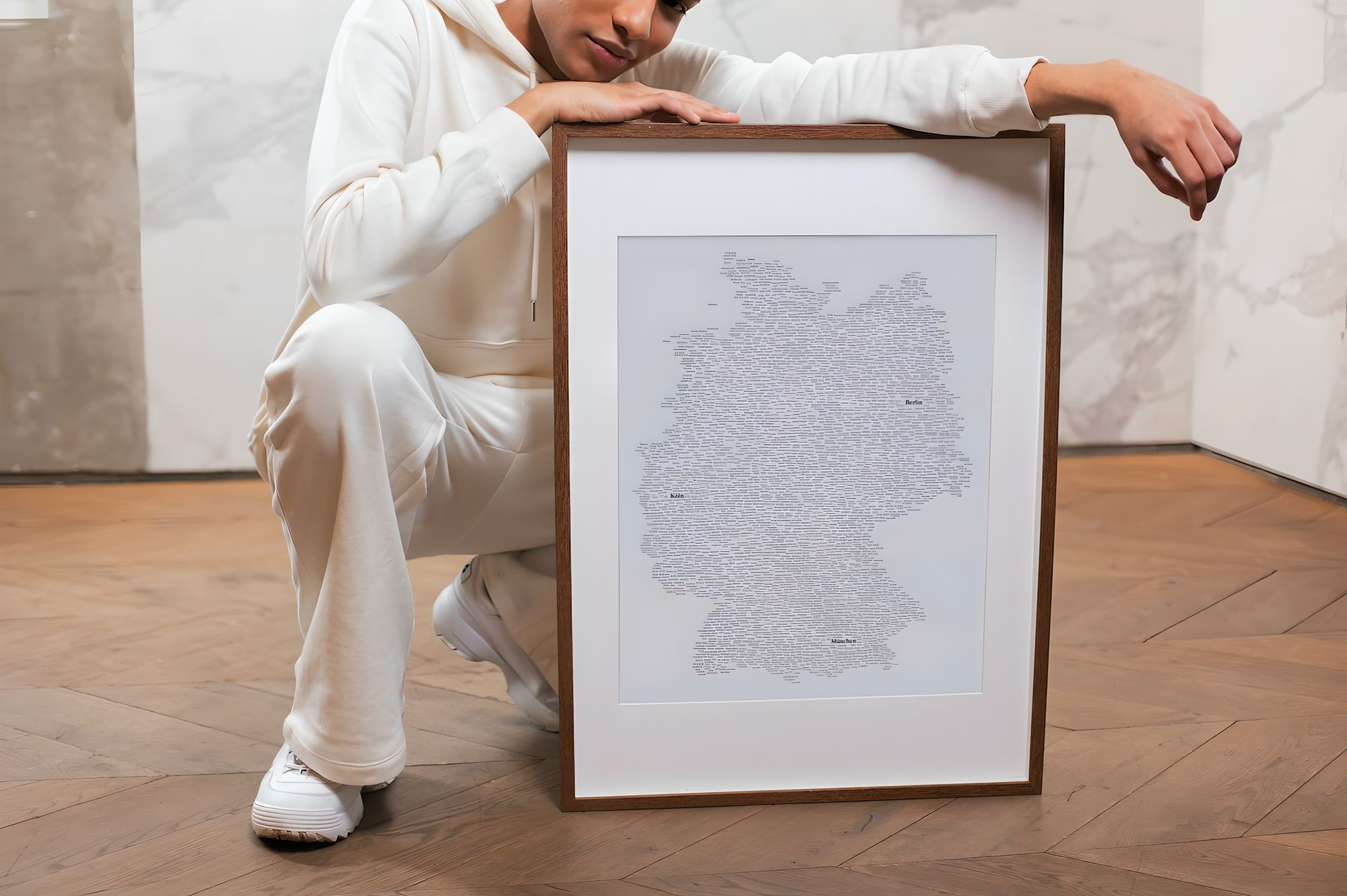
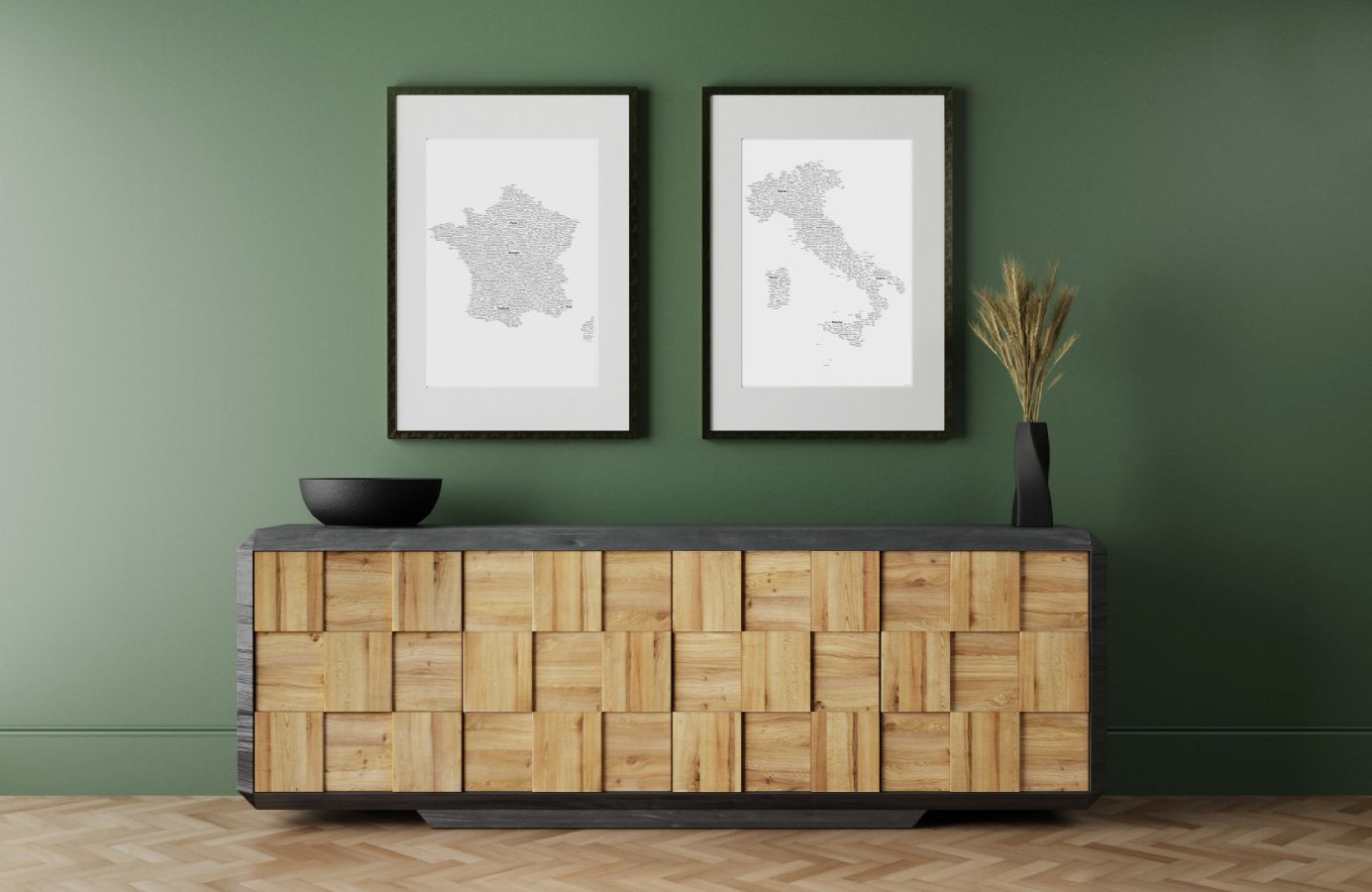
Example of a finished typographic map. The digital file is sold separately from printing and framing.
Stop automatic cropping before it reaches the printer
Open the print preview and check all four sides. Options such as filling the page or printing borderless may enlarge the artwork until part of it falls outside the printable area. A setting that fits the entire page may introduce margins or reduce the size. The right choice depends on the paper, printer and whether the design has room for trimming.
For a file already prepared at the intended paper size, ask the shop to preserve that size and the whole composition. If their printer cannot print to the edge, discuss a larger sheet with trimming or an acceptable white margin. Do not assume the download contains bleed. Ask the operator what their workflow requires before anyone changes the artwork.
Test the smallest names, not only the large highlights
Zoom into a few dense areas of the original map. Check the highlighted towns, accents and small settlement names. On YourLovely.Place, up to ten important towns or cities can be emphasised in larger, bolder text. That makes the personal places more prominent, but it does not mean every tiny name will be readable at every viewing distance.
A small proof of a detailed section at the intended scale is more informative than shrinking the entire A1 poster onto A4. Ask the shop how it can provide a test that shows real letter size and colour. Use that proof to judge the result before ordering the full print. Keep the test settings consistent with the final job.
Choose paper by the result you want
A matte surface can be comfortable for reading dense text because it avoids a shiny finish, although glazing and room lighting can still create reflections. A satin or glossy paper gives a different look. Ask to see paper samples rather than choosing solely from a screen. Weight, stiffness, surface and the printer’s ink system all affect the finished object.
Do not treat the heaviest paper as automatically the best. Check whether it lies flat, fits the frame and is suitable for the shop’s equipment. If the print will sit behind glass, view a sample through similar glazing if possible. A dark map in a bright room may reflect more than you expect once it is framed.
Expect a proof to tell you more than a phone screen
Screens emit light; printed paper reflects it. Background colours can therefore look different after printing. Automatic photo enhancement can also change contrast or colour. Tell the shop that this is designed artwork and ask whether such adjustments are enabled. You want a deliberate decision, not an unnoticed correction intended for photographs.
Keep the colour profile supplied with the file unless the print provider gives specific instructions. Do not convert everything to a different colour space just because an online checklist says to. The provider knows its equipment and workflow. A proof viewed in the room’s normal lighting gives you a more useful basis for approval than comparing two phones at different brightness settings.
Buy a frame that matches the print
An A3 print is not 30 × 40 cm, and A2 is not 40 × 60 cm. These sizes are close enough to cause an expensive mistake. Check the frame’s stated artwork size and, if using a mount, the dimensions of its opening. The outer frame measurements tell you how much wall space it needs; they do not tell you what paper fits inside.
YourLovely.Place sells the digital design; printing, frames and delivery are arranged separately. Choose the country, highlighted places, palette and orientation in the preview, then organise the physical finish locally. Before collecting the print, confirm the paper size and inspect the edges and small text. Keep the original files so you can reproduce the poster later without starting again.
Technical references: HP: paper dimensions; Adobe: print scaling.